
Complete IPTV Setup Guide: Install IPTV on Any Device in Minutes

How to Install and Set Up SHOROC IPTV on Any Device
Welcome to the SHOROC IPTV Setup Guide. Below, you’ll find step-by-step instructions on how to install and set up your SHOROC IPTV subscription on different devices and players.
Choose the device you want to use, and follow the corresponding IPTV installation and setup guide to get started.
Important Note Before You Contact Us
SHOROC provides the IPTV subscription only. The apps and IPTV players mentioned in our guides are third-party applications that we recommend based on our previous customers’ experience. We are not responsible for app crashes, bugs, compatibility issues, updates, or other problems related to these players.
When you subscribe to SHOROC IPTV, you will receive your login details in multiple formats, including:
- Xtream Codes: Username, Password, and Server URL
- M3U Playlist: For use with compatible IPTV players
This allows you to use your subscription with different IPTV players and devices.
Before contacting our support team about a playback or setup issue, we recommend trying at least 2 or 3 different IPTV players on the same device. You can use the same SHOROC login details on multiple compatible players without changing your subscription.
The players recommended in our guides are selected based on previous customer experience and compatibility, but you are also free to use any compatible IPTV player that supports Xtream Codes or M3U playlists.
Before You Start
Most IPTV players follow a very similar setup process. In general, you simply need to add a new playlist and enter your SHOROC IPTV login details using either the M3U format or Xtream Codes format.
Click on the device you want to use your SHOROC IPTV subscription on below to find the complete step-by-step IPTV setup and installation guide.
IPTV Setup on Firestick
For Amazon Firestick, you can use the Downloader app to easily install the IPTV player of your choice. Downloader is commonly available on Android-based devices and makes it simple to install compatible IPTV players.
How to Install an IPTV Player
- Open the Downloader app on your Firestick.
- Enter one of the player codes listed below. Example: 6124314
- Click Search to open the download page.
- Follow the instructions on screen to install the player.
- Once installed, open the player and enter your SHOROC IPTV login details.
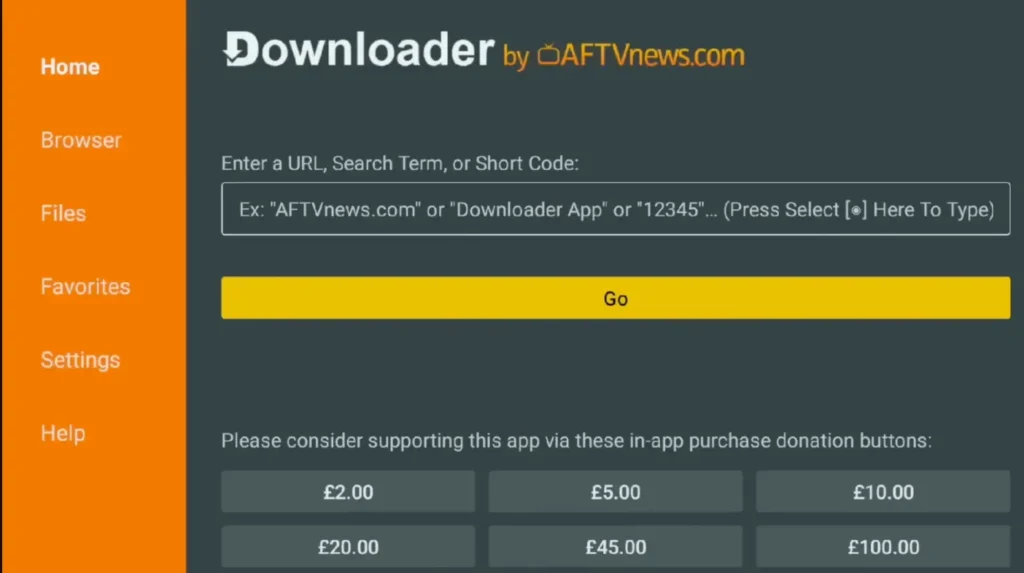
The installation process is essentially the same for all recommended players. Simply use the corresponding code for the player you want to install.
Recommended IPTV Players
➤ 8K Player+: 6124314
➤ 8K Player: 1315630
➤ 8K Prime: 9149440
➤ 8K VIP: 6844860
➤ TiviMate 8K Pro: 3410676
➤ 4k app : 9285892
➤ Hot Player: 395800
➤ STZ Player: 527403
➤ IBO Player: 481220
Enable "Apps from Unknown Sources" (One-Time Setup)
Before installing any IPTV apps, allow your Firestick to accept third-party apps:
From Firestick Home, go to Settings
Select My Fire TV
Choose Developer Options
Click Install Unknown Apps
Enable access for Downloader
🔸 If you don’t see Developer Options:
Go toSettings > My Fire TV > About > Fire TV Stick
Click it 7 times to unlock Developer Options
Install the Downloader App (Required for Both Apps)
From the Home screen, click Find > Search
Search for Downloader, install, and open it
Grant permissions and dismiss prompts
Option 1: Install & Set Up IPTV Smarters Pro
Download IPTV Stream Player
Open Downloader
In the URL box, enter:
https://www.firesticktricks.com/streamplayerClick Go, then select Install
Once installed, choose Done, then delete the APK to save space
Set Up IPTV Stream Player
Launch the app, accept the Terms of Use
Click Add User > Login with Xtream Codes API
Enter:
Any Name (e.g., SHOROC 4K IPTV)
Username, Password, and Server URL from your email or WhatsApp
Click Add User, then access Live TV, Movies, or Series
💡 You can also choose “Load Your Playlist or File/URL” and use your M3U link instead.
IPTV Setup: Install SHOROC IPTV on Android & iOS Devices
SHOROC IPTV works seamlessly on all major smartphones and tablets — whether you’re using Android or iPhone/iPad. The most recommended IPTV apps are IPTV Stream Player and IBO Player Pro, both compatible with our system using either Xtream Codes API or M3U Playlist URL.
Step 1: Choose one of this Players
Step 2: Log In with SHOROC IPTV Credentials
When you first launch the app, click “Add User” — you will be prompted to choose a login method.
Option 1: Login via Xtream Codes API (Recommended)
We suggest using Xtream Codes for full feature access like Catch-up, auto EPG, and faster performance.
Select Login with Xtream Codes API
Fill in the fields:
Any name (e.g., SHOROC IPTV)
Username, Password, and Server URL provided in your email or WhatsApp
Tap Add User and wait a few seconds
Navigate to Live TV, Movies, or Series to start streaming
Option 2: Login via M3U Playlist URL
If you prefer using the M3U URL:
Choose Login with Playlist
Select:
Any name (e.g., SHOROC M3U)
Paste your M3U URL from the activation message
Add user, then access Live TV and choose your channels
Set Up IBO Player Pro with SHOROC
Launch the app after installation
On the first screen, you’ll see your MAC Address and Device Key
Take a screenshot or photo and send to us via WhatsApp or email to activate your account.
After activation (if you want to add it yourself)
Tap Change Playlist > Add Playlist
Choose Xtream Codes API
Enter your credentials:
Any name
Username, Password, Server URL (from email or WhatsApp)
Tap Add Playlist and return to Home
Tap Reload to sync your channels
That’s it — your SHOROC IPTV is ready to stream!
IPTV Setup: Install SHOROC IPTV on Samsung & LG Smart TVs
SHOROC IPTV works perfectly on Samsung and LG Smart TVs using IPTV apps like HOT Player and IBO Player Pro. All you need is your Xtream Codes API or M3U Playlist info, which you’ll receive via email or WhatsApp after activating your SHOROC IPTV subscription.
For Samsung Smart TV:
Press the Smart Hub button on your Samsung remote
Go to Apps and search for “IBO Player”
Download and install the IBO Player app
Open the app and proceed to login (details below)
For LG Smart TV:
Press the Home button on your LG remote
Go to the LG Content Store
Search and install IBO Player
Launch the app and continue to login
Option 1: Xtream Codes API (Recommended)
This method offers the best performance, EPG auto-sync, and features like Catch-up.
Choose Login with Xtream Codes API
Enter:
A profile name (e.g., SHOROC 4K IPTV)
Your Username, Password, and Server URL sent via WhatsApp or email
Click Add User and wait for the playlist to load
Go to Live TV, select a category, and choose a channel
Double-tap to watch in full screen
Option 2: M3U Playlist Login
If you received an M3U URL:
Choose Login with Playlist
Fill in:
Any profile name (e.g., SHOROC M3U)
Your M3U Playlist URL from the welcome message
After loading, go to Live TV, select your channel group, and enjoy streaming
HOT Player
- For Samsung TVs: Search for “HOT Player” in the Samsung App Store
For LG TVs: Search for “HOT Player” in the LG Content Store
Setup for Hot Player is similar using MAC Address + Xtream Codes. Contact our support for activation instructions.
IPTV Setup: Install SHOROC IPTV on Windows & macOS Devices
Watching IPTV from your desktop or laptop is easy with IPTV Stream Player, compatible with both Windows and macOS. You’ll receive your Xtream Codes login or M3U Playlist URL via email or WhatsApp after activating your SHOROC IPTV subscription.
Step 1: Download 8k Player for Your Device
Windows 11: Click here
- Windows 10: Click here
Mac Users: Download IPTV Smarters for macOS
Install the app like any other program, then launch it to begin setup.
Step 2: Accept Terms and Choose Login Method
When you launch the app for the first time:
Accept the Terms of Use
Click “Add User”
Choose one of the two login options below:
Option 1: Login via Xtream Codes API (Recommended)
We recommend using Xtream Codes login for the best experience — this method enables auto EPG, Catch-up, and faster sync.
Select Login with Xtream Codes API
Fill in the required fields:
Any name (e.g., SHOROC IPTV)
Username, Password, and Server URL — sent via email or WhatsApp
Click Add User
Wait a few seconds for your content to load
Click Live TV, select a category, then a channel to start watching
Double-click the video window for full-screen mode
Option 2: Login via M3U Playlist URL
If you only have a M3U Playlist link:
Select Load Your Playlist or File/URL
Fill in:
Any name (e.g., SHOROC Playlist)
Paste your M3U URL
Add User, then click Live TV
Choose your category and start streaming your content
FAQs About IPTV Setup
How do I install IPTV on Firestick?
To install IPTV and complete your IPTV setup on your Firestick, first enable “Apps from Unknown Sources” in your device settings. Then, use the Downloader app to sideload IPTV Smarters Pro or IBO Player. Once installed, enter your M3U URL or Xtream Codes to start watching.
What is the best IPTV app for Firestick in 2025?
Popular IPTV apps for Firestick in 2025 include IPTV Smarters Pro, IBO Player Pro, and TiviMate. These apps support both M3U links and Xtream Codes login for quick setup and stable streaming.
Can I watch IPTV on a Samsung or LG Smart TV?
Yes, IPTV is fully supported on both Samsung and LG Smart TVs. To complete your IPTV setup simply download IPTV Smarters Pro or IBO Player Pro from the app store, then log in with your subscription details.
How do I use IPTV Smarters Pro with M3U URL?
Open the IPTV Smarters Pro app, select “Login with Playlist,” and paste your M3U URL. Give your connection a name and save it to start streaming live TV and VOD content.
What’s the difference between Xtream Codes API and M3U Playlist?
Xtream Codes API login offers advanced features like Catch-up TV and auto EPG loading. M3U Playlist is simpler but requires manual EPG URL. Both are supported by SHOROC IPTV.
Is IPTV compatible with Windows and Mac?
Yes. You can install IPTV Smarters Pro on both Windows and Mac. To complete your IPTV setup Download the correct version, install it, and log in using Xtream Codes or M3U details provided after subscription.
Which IPTV app is best for iPhone and Android in 2025?
IPTV Smarters Pro and IBO Player Pro remain the top apps for iOS and Android devices in 2025, offering user-friendly design and compatibility with most IPTV providers.
Do I need a VPN for IPTV?
While SHOROC IPTV is stable globally, we recommend using a VPN for privacy and avoiding regional restrictions. Especially useful in countries where IPTV use is restricted.
Can I try IPTV before paying?
Yes, SHOROC IPTV offers a free trial so you can test channel quality, compatibility, and device setup before subscribing.
What devices support SHOROC IPTV service?
SHOROC IPTV works on Firestick, Smart TVs, Android boxes, mobile phones, tablets, Windows, Mac, MAG devices, and more — using IPTV Smarters Pro, IBO Player, or any M3U-compatible app.